
Board settings
Board settings are the defaults every new plan on that board starts from. Setting them once means each sprint plan needs less work.
Before you begin: You need the Administer projects permission on the Jira project.
Open board settings
- Open your Jira project and select Board Planning in the sidebar.
- Select Board settings.
If the project has more than one board, pick the board first. Settings are per board, so two boards in the same project can differ.
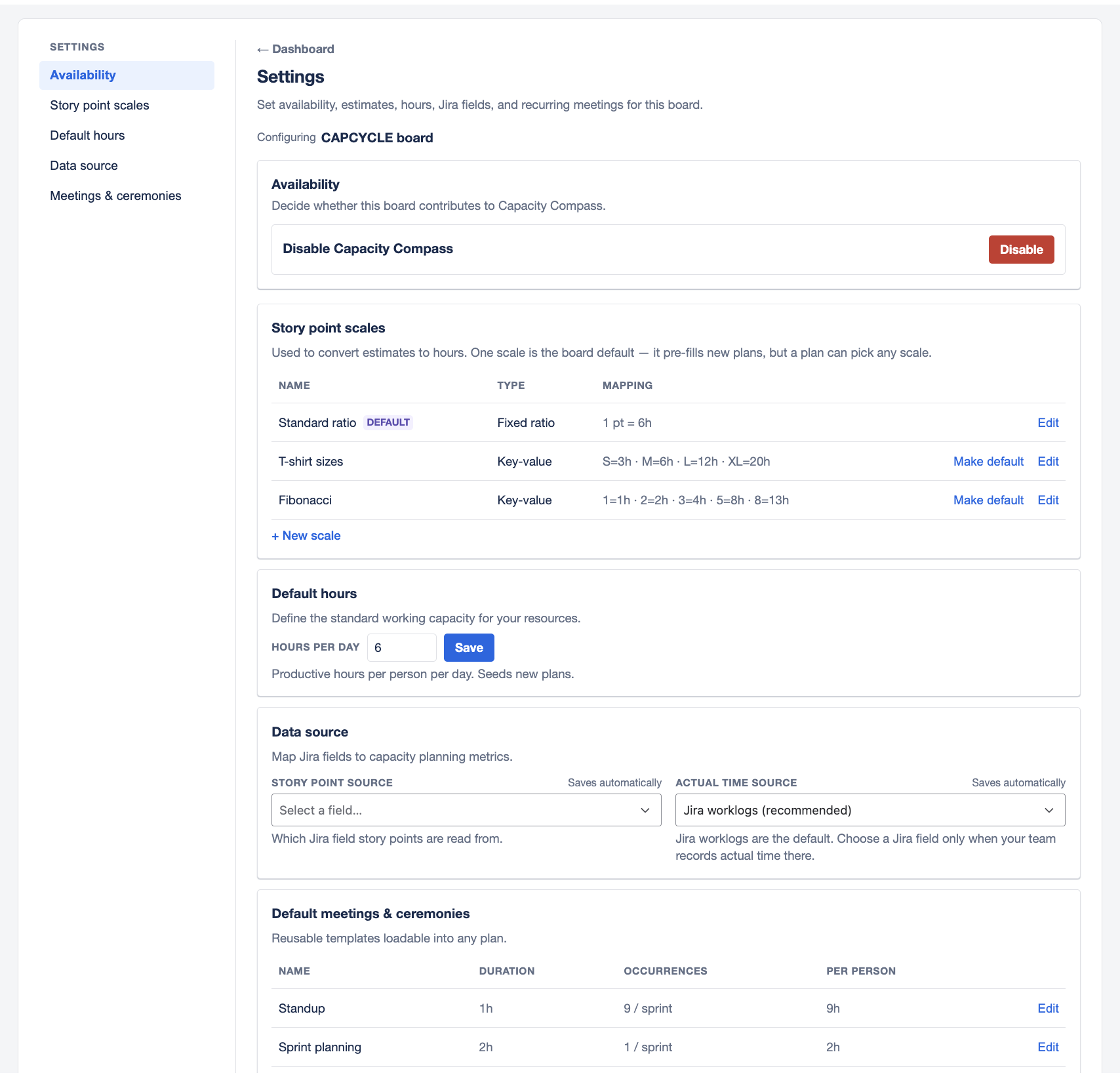
A side menu lists the sections: Availability, Story point scales, Default hours, Data source, and Meetings & ceremonies.
A disabled board shows Availability only. Enable it to reach the rest.
Changes apply to new plans
Note: Board settings seed new plans. Plans that already exist keep their own copy of these values and are not rewritten. To change an existing plan, edit it on its own board.
Availability
Whether this board contributes to Capacity Compass at all. See Turn Capacity Compass on for a board.
Story point scales
How story points convert to hours. Capacity is measured in hours, so a team planning in points needs a conversion.
Three scales ship with every board:
| Scale | Type | Conversion |
|---|---|---|
| Standard ratio | Fixed ratio | 1 point is 6 hours |
| T-shirt sizes | Key-value pairs | S is 3h, M is 6h, L is 12h, XL is 20h |
| Fibonacci | Key-value pairs | 1 is 1h, 2 is 2h, 3 is 4h, 5 is 8h, 8 is 13h |
Standard ratio is the board default until you change it.
Add a scale
- In Story point scales, select Add.
- Enter a Scale name.
- Choose Fixed ratio or Key-value pairs under How values convert to hours.
- For a fixed ratio, enter the hours per point. For key-value pairs, enter each Key / label with its Hours.
- To make it the starting choice for new plans, select Set as this board's default scale.
- Select Save.
Use key-value pairs when your points are a sequence rather than a rate. If an issue's points are not in the table, Capacity Compass estimates a value between the nearest entries and marks it with an asterisk.
Up to 50 scales per board.
Default hours
Hours per day is the productive hours one person works per day, and it seeds capacity on new plans. The default is 6.
Set it to the hours people genuinely spend on sprint work rather than contracted hours. Allowed range is 1 to 24.
This section saves as you change it.
Data source
Which Jira fields Capacity Compass reads.
Story point source is the field holding each issue's planned effort. New plans start with this field selected.
Actual time source is where logged time lives, with three choices:
- Jira worklogs (recommended) if people use Jira's Log work action.
- A Jira field (override) if your team records time in a custom field.
- Not tracked if you do not log time.
Actual time is optional. Without it, planning works, but the delivered comparison and the estimate bias view in Track how your sprints are going have nothing to read.
Both settings save as you change them.
Meetings & ceremonies
The standing meetings every new plan starts with. Out of the box:
| Meeting | Duration | Occurrences | Everyone attends |
|---|---|---|---|
| Standup | 1h | 9 | Yes |
| Sprint planning | 2h | 1 | Yes |
| Refinement | 1h | 2 | Yes |
| Retro | 1h | 1 | No |
Add or edit a meeting
- In Meetings & ceremonies, select Add, or the edit icon on an existing one.
- Enter the Meeting name.
- Enter Duration per occurrence (h).
- Enter Occurrences in the window, meaning how many times it happens in one sprint.
- Select Pre-populate with all team members by default if everyone normally attends.
- Select Save default.
Per person cost is duration multiplied by occurrences. A one hour standup happening nine times costs each attendee nine hours.
Clear the pre-populate option for meetings only some people attend, such as a retro that leads skip. Attendance is still adjustable per plan.
Up to 50 meetings per board.
Remove a meeting
Select the delete icon. The board default is removed for future plans. Plans that already loaded it keep their own copy.