
What Capacity Compass does
Capacity Compass answers one question: can this team actually deliver the sprint you are about to commit to?
Jira tells you what work is assigned. It does not tell you how many hours your team genuinely has once you subtract holidays, standups, refinement, and the afternoon that disappeared into an incident. Capacity Compass holds both numbers side by side so you can see an over-commitment before the sprint starts rather than in the retro.
Where to find it in Jira
Capacity Compass appears in the sidebar of any Jira software project as Board Planning.
- Open a Jira software project.
- In the project sidebar, select Board Planning.
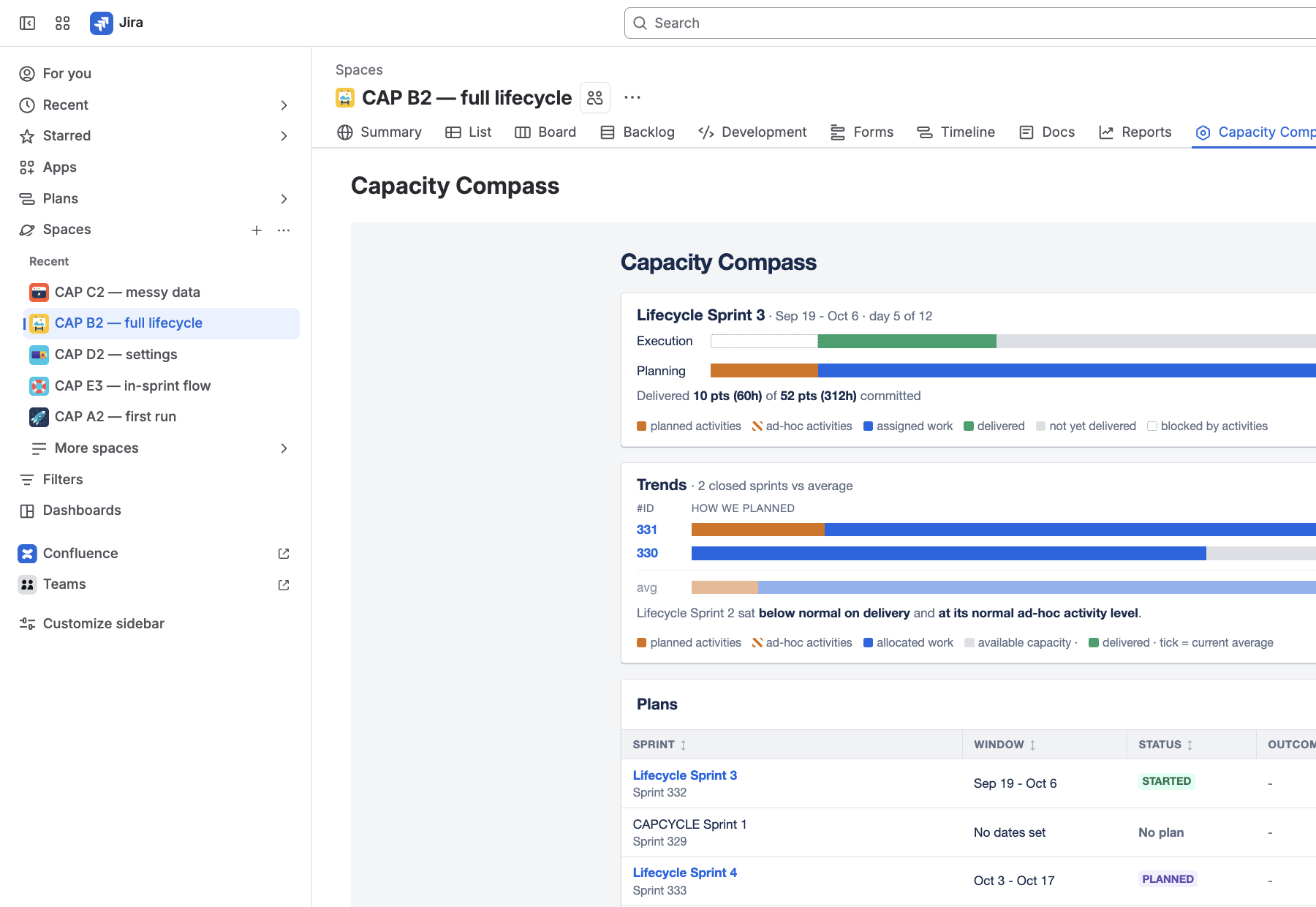
The item only appears in software projects. Service management, business, product discovery, and operations projects have no sprint boards, so there is nothing for Capacity Compass to plan and the item is hidden.
Jira administrators have a second screen under Jira settings. See Site settings for Jira admins.
What you get
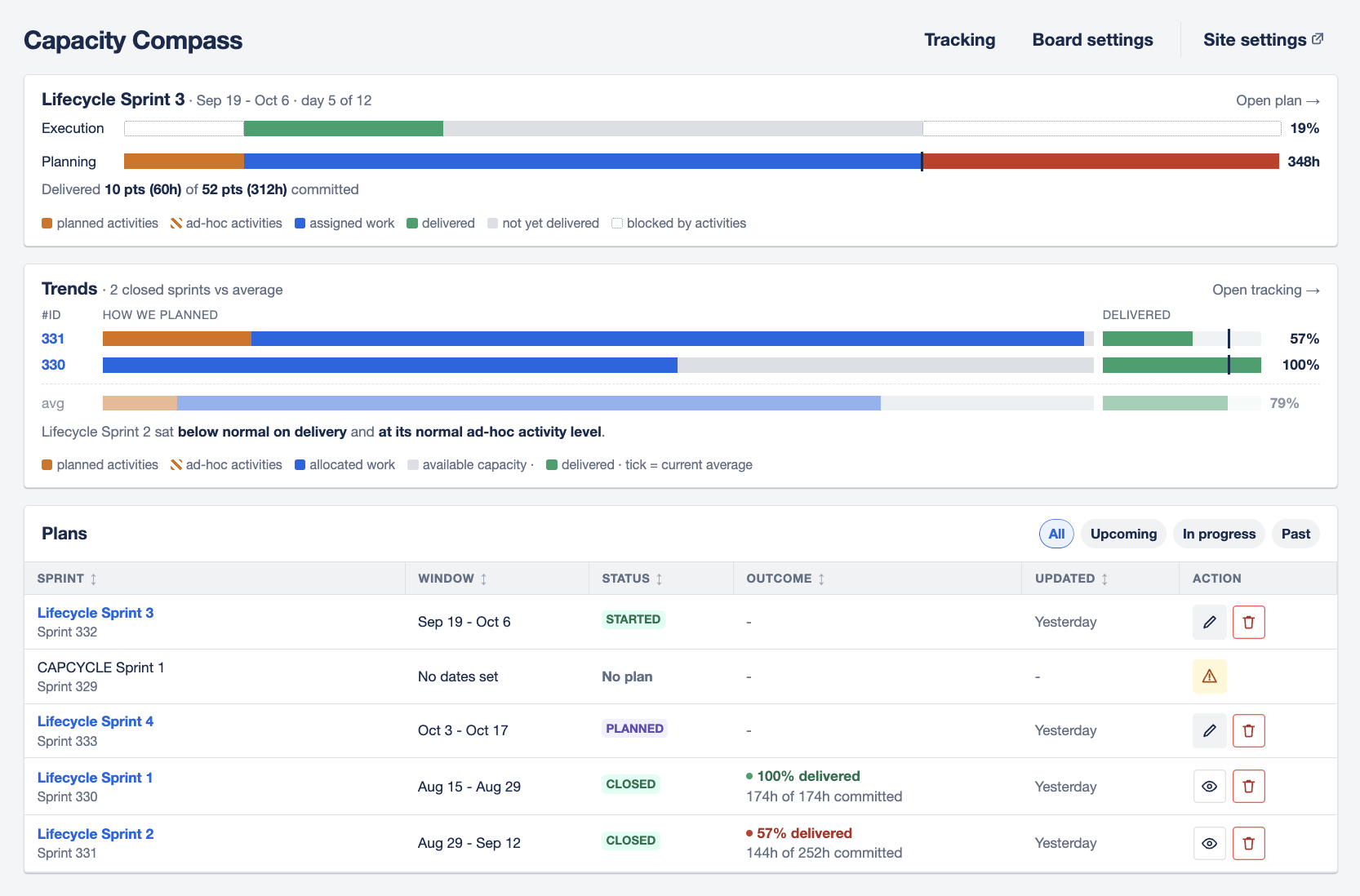
Capacity Compass has five screens. You will spend nearly all of your time on the first three.
| Screen | What it is for |
|---|---|
| Capacity planning | The landing screen. Lists your sprint plans and their outcomes, and starts a new one. |
| Plan setup | Creating a plan. Pick the sprint, the people, and how estimates are read. |
| The plan board | The working screen. Team hours, activities, and the capacity verdict. |
| Tracking | How previous sprints actually went, and whether your estimates can be trusted. |
| Settings | Per board defaults: scales, hours per day, Jira fields, standing meetings. |
How the numbers work
Three figures drive everything Capacity Compass tells you. They are always in hours.
| Figure | Meaning |
|---|---|
| Gross | The hours a person is at work this sprint, before any meetings come out. |
| Activities | Hours taken by meetings, ceremonies, and one-off interruptions. |
| Net | Gross minus activities. The hours genuinely left for Jira work. |
Capacity Compass then compares net capacity with the estimated hours of the Jira issues assigned to each person, and gives the plan a verdict. See Understand your capacity result.
If your team estimates in story points, Capacity Compass converts them to hours using a scale you control. Capacity itself is always hours, because holidays and standups are not measured in points.
What Capacity Compass does not do
Worth knowing before you start, so you are not waiting for something that is not coming.
- It never changes your Jira data. No issues are created, edited, assigned, transitioned, or commented on. Everything it stores lives in the app.
- It plans Scrum sprints. Kanban boards have no sprint to plan against.
- It does not assign work. You assign issues in Jira as usual. Capacity Compass reads what is already assigned.
- It does not track individual performance. Tracking looks at whether sprints landed where they were planned, not at who was fastest.
Who can do what
| If you are | You can |
|---|---|
| Anyone who can view the project | Open Capacity Compass, read plans, and report your own availability |
| A project administrator | All of the above, plus create and edit plans, change board settings, and turn Capacity Compass on or off for a board |
| A Jira administrator | All of the above, plus set the site wide default and manage every board from one screen |
The permission Capacity Compass checks for project administration is Administer projects. See What Capacity Compass reads from Jira.