
Check your own availability
If someone plans sprints for your team, they need to know how much time you actually have. Rather than guessing, Capacity Compass lets you report it yourself.
You do not need any special permission. Anyone on a plan can do this.
Open your check-in
- Open your Jira project and select Board Planning in the sidebar.
- Select the plan for the sprint you are reporting on.
- Select My planning at the top of the plan board.
The board switches to your row alone. Team planning switches back.
If it asks who you are
Capacity Compass matches you to your row automatically. If it cannot, it asks you to pick yourself from the list.
That happens when you are not on the plan's roster, or when your Jira identity could not be matched. Pick your own name. If you are genuinely not on the plan, ask whoever runs it to add you.
Pick the right person. Choosing the wrong name edits someone else's capacity.
Report your time
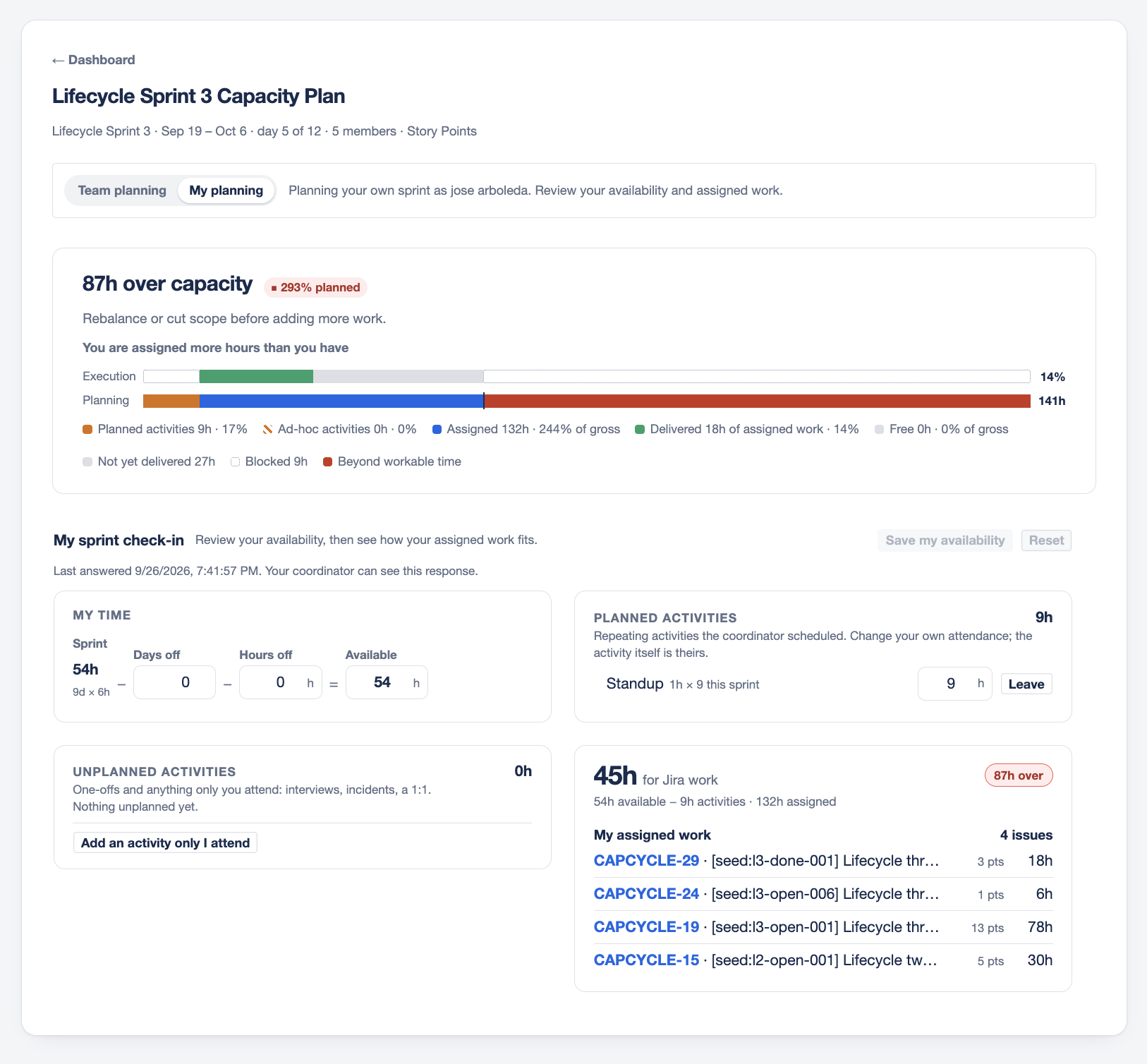
My sprint check-in opens with four boxes. The first is My time, laid out as a calculation:
Sprint hours − days off − hours off = available
- In Days off, enter full days you are away.
- In Hours off, enter part days: a half day, an afternoon at an appointment.
- Check the Available figure.
Sprint shows the team's starting point, for example 60h with 10d × 6h beneath it.
You can type directly into Available if your sprint does not break down neatly into days and hours. When your figure differs from the calculation, the equals sign becomes an arrow to show you have overridden it.
Confirm your meetings
Two boxes cover activities.
Planned activities lists the repeating activities scheduled for the team. You can change whether you attend and for how long. The activity itself belongs to whoever runs the plan, so you cannot rename or delete it.
Unplanned activities is yours. Add anything that took your time and nobody else's: an interview, an incident, a 1:1. Select Add, name it, and enter the hours.
See how your work fits
Once your hours are entered, Capacity Compass shows the figure the check-in exists to produce: your hours for Jira work, with a pill saying how many hours you are free or over.
The line beneath shows the arithmetic: available hours, minus activities, against assigned.
My assigned work lists every Jira issue assigned to you this sprint with its estimate. If you are over, this is where you see which ticket to move.
Save
- Select Save my availability.
Your hours and your attendance changes save together. The status line reads Unsaved changes while you have edits pending, then confirms once saved.
Your response is visible to whoever runs the plan, along with when you last answered. The panel says so, so nothing about it is hidden from you.
Reset discards unsaved changes and returns to your last saved figures.
Messages you might see
| Message | What to do |
|---|---|
| Enter valid days off and hours within the sprint | Days off cannot exceed the sprint length, and hours off cannot exceed the time left after them |
| A figure is well beyond the team starting point | Check for a typo, such as 380 instead of 38. You can still save it if it is right |
| Activities exceed your available hours | Your meetings add up to more time than you have. Check your attendance, or tell whoever runs the plan |
| This sprint is closed | Closed sprints are read only. Nothing more to report |
What you cannot change here
My planning covers your own availability only. Adding or removing people, changing the plan wide hours, renaming the plan, and deleting it stay with whoever runs the plan, because those change what other people committed to.