
Set your team's capacity
Capacity is how many hours your team genuinely has this sprint. Capacity Compass builds it in two layers: a plan wide baseline, then per person adjustments.
Before you begin: You need the Administer projects permission on the Jira project. Anyone can adjust their own hours without it, as described in Check your own availability.
The order matters
Set the baseline first, then adjust individuals. Saving Capacity settings resets every member's gross capacity to working days multiplied by hours per day. Any individual hours you set beforehand are overwritten.
Set the baseline
The Capacity settings panel sits near the top of the plan board and holds two numbers.
- Select Edit.
- In Working days, enter how many days this sprint covers.
- In Default hours per day, enter the productive hours one person works per day.
- Select Save.
When the panel is closed it shows a summary, for example 9 working days · 6h per day.

Set hours per day to the hours people really spend on sprint work, not contracted hours. Six is a common starting point for an eight hour day, and it is the default Capacity Compass ships with.
Read the Team table
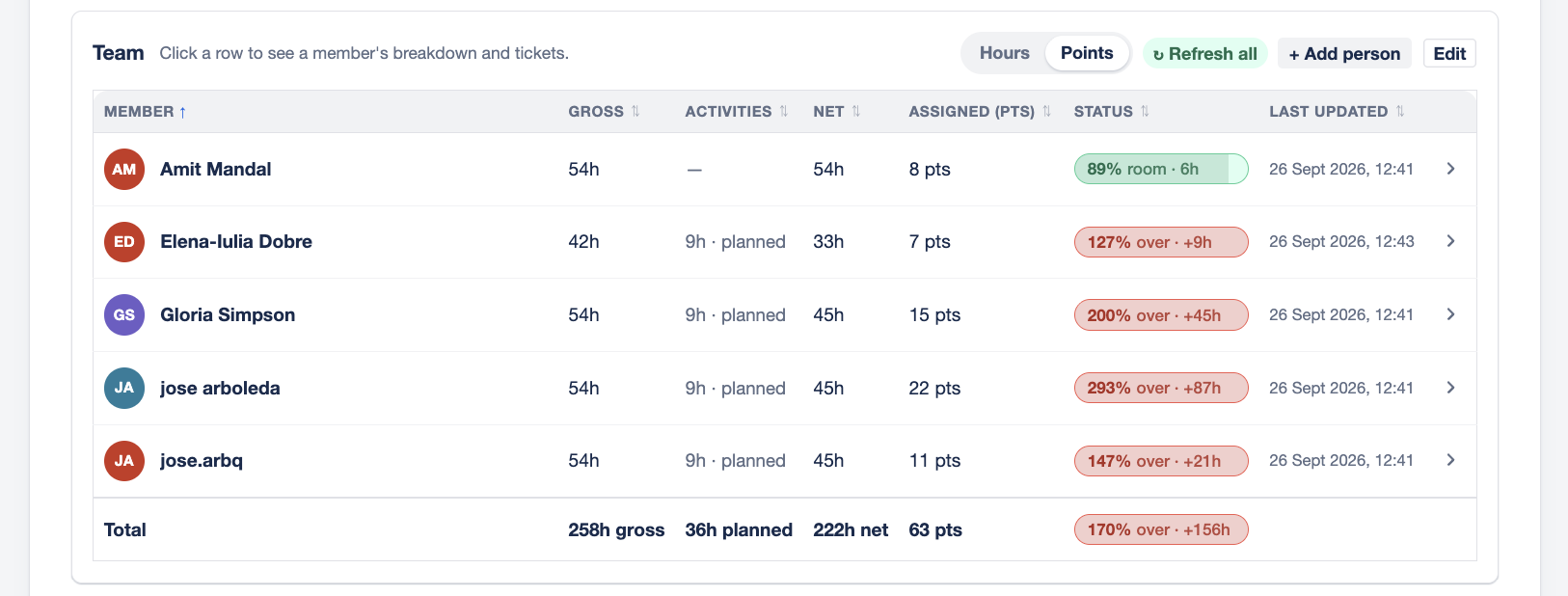
The Team panel lists everyone on the plan.
| Column | What it shows |
|---|---|
| Member | The person. Select the name to expand their breakdown and issues. |
| Gross | Hours at work this sprint, before meetings. Editable. |
| Activities | Hours taken by the meetings they attend. Calculated. |
| Net | Gross minus activities. The hours left for Jira work. |
| Assigned | Estimated hours of the Jira issues assigned to them in this sprint. |
| Status | Assigned as a share of net, with a word for the state. |
| Last updated | When this person's capacity last changed. |
A totals row sits at the bottom. Select any column heading to sort by it.
What the Status column means
| Status | Meaning |
|---|---|
| room | Assigned work fits, with the spare hours shown. |
| on track | At 90% of net capacity or more, still within it. Little slack left. |
| over | Assigned work exceeds net capacity, with the excess shown. |
| unassigned | Almost nothing assigned. Usually means work has not been handed out yet. |
unassigned is flagged for attention rather than treated as healthy. A person with capacity and no work is normally the most useful row on the board.
Change one person's hours
- In the Team panel, select Edit.
- Change the Gross figure for anyone whose availability differs.
- Select Save.
All rows save together. Select Cancel to discard the lot.
Example: someone on a 60 hour baseline taking two days off at 6 hours a day has 48 gross hours.
Add someone
- In the Team panel, select + Add person.
- Search for them and select them.
- Select Save.
Only members of the Jira project can be found. Add them to the project in Jira first if they are missing.
Remove someone
- Select Edit in the Team panel.
- Select the person's name to expand their row.
- Select Remove from plan.
- Select Save.
This removes them from the capacity plan only. Their Jira issues stay assigned to them.
See one person's detail
Select a name to expand the row. You get their gross, activities, and net arithmetic laid out, the meetings they attend, and every Jira issue assigned to them with its estimate in both points and hours.
An issue showing no estimate contributes nothing to their assigned load. Those issues are counted separately in the verdict, because unestimated work is capacity you are committing to blind.
Refresh assigned work
Assigned figures come from Jira when the plan loads. If issues have been reassigned or re-estimated since, select ↻ Refresh all in the Team panel, or ↻ Refresh issues inside one person's expanded row.
Switch between hours and points
When a plan uses story points, a Hours and Points switch appears in the Team panel. It changes how the Assigned column is displayed. Capacity itself stays in hours.
Changing capacity mid sprint
You can edit a plan after its sprint starts. Capacity Compass warns you when you do.
Tracking keeps the capacity captured at sprint start as the commitment, so your changes update the current plan without rewriting the history of what you originally committed to.
Once a sprint closes, the plan becomes read only.